 Documentation
Forecasts
Forecasting
Overview
SKOOR's forecasting module offers ML-based prediction of future trends on time series data. Four models are available:
Linear Regression (See official documentation here)
All models support datetime-indexed series sourced directly from a SKOOR DataSource or DataQuery.
Forecasting Page
The forecasting page is divided into two sections.
General Page
This section includes the settings of the forecasts.
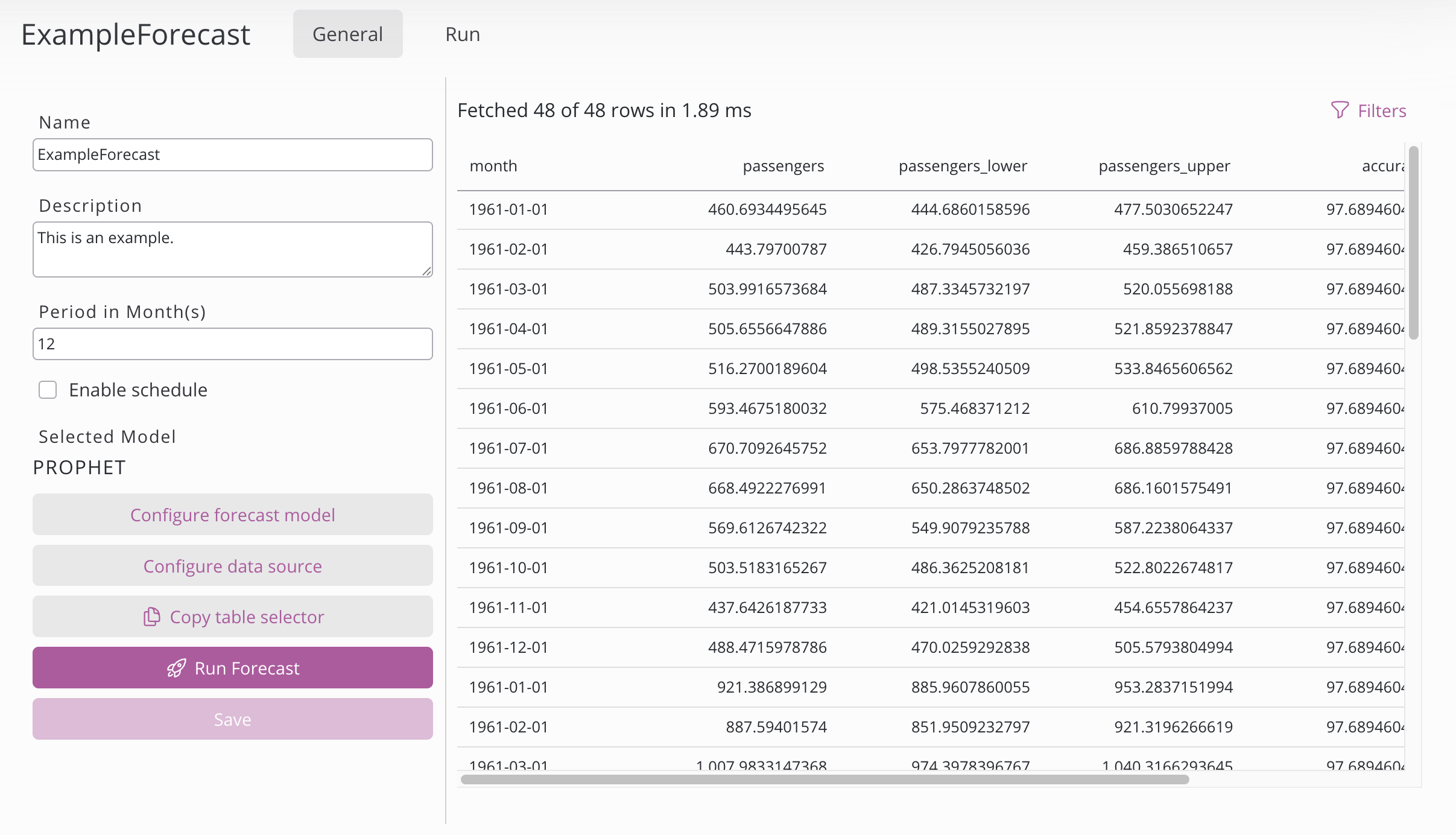
On the left side:
Setting | Description |
|---|---|
Name | Name of the forecast configuration. |
Description | Description of the forecast configuration. |
Period | The forecast period defines how far into the future a model generates predictions. Change the unit of the period in the data definition configuration. |
Enable schedule | First choose a period (Year, Month, Week, Day, Hour, or Minute) – depending on your selection, only the relevant fields appear (Months, Month days, Week days, Hours, Minutes). Multiselection is possible and to run the process at a regular interval, set the Period and double-click the desired number. Example: Every day at 02:30 → Period "Day", Hour 2, Minute 30. Example: Every 10 Minutes → Period "Hour", Minute <double click on 10> |
Selected model | The selected model can be changed in the forecast model configuration. |
Configure forecast model | Choose the model for forecasting. |
Configure data definition | Choose the data for forecasting. |
Copy table selector | Button to copy the table containing the forecast. |
Run forecast | Runs one forecast with the configured settings. Status and progress can be seen on the run page. |
Save | Saves the forecast configuration. If the hyperparameter search option in the model configurator is ticked, then a forecast run is triggered automatically upon saving. |
On the right side is the overview of the forecast data in a table. It’s only shown if already forecast exists.
Run Page
This section is responsible for running and monitor the runs of the forecast. It offers control over the history and enables insights.
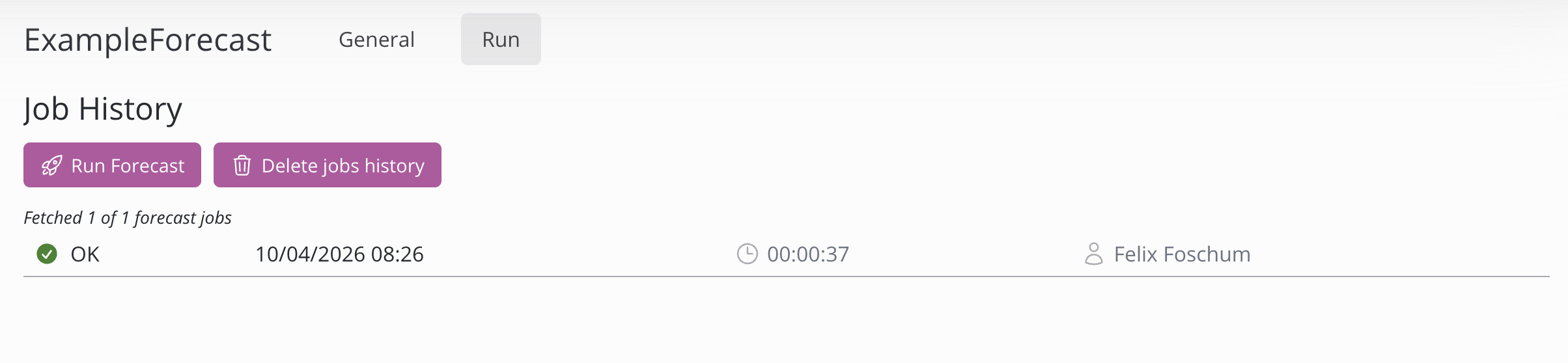
Running a forecast can be done by clicking on the run forecast button. The complete history of runs can be deleted by clicking the delete jobs history button. Note that any tables created by the forecasts will be deleted and to get them again you have to run the forecast again. When a job is still running it can be cancelled by clicking on the red X on the right side of the shown status.
When clicking on a job, the console output, progress, status and further Information can be seen. In the console output, every group and its accuracy is printed out. The printed Accuracy is measured with WAPE (Weighted Absolute Percentage Error), is shown in percentages and is calculated on the performance of the model on the historical data.
Creating a forecast
A forecast configuration can be created by either clicking the Plus button on the left side and insert a name or by importing a forecast using the json-format. When a forecast configuration has been created, a few settings need to be set on the general page.
Model configuration
Clicking the 'Configure forecast model' button opens a dialogue box where the model can be chosen. Currently, there are 4 different model options that can be seen below. Some of the models feature a Hyperparameter optimisation button that allows the model to test various combinations of hyperparameters in order to find the best one. Various hyperparameters that can be set are listed below the model. If the hyperparameter search has already been triggered, you can view and copy the hyperparameters by clicking the 'Show optimized hyperparameters' button.
Once you have finished setting the hyperparameters, click Save to save the model configuration or Cancel to undo the changes.
Setting | Description |
|---|---|
Forecast model | Model to use for forecasting:
|
Hyperparameter optimization | When enabled, the system automatically searches for optimal hyperparameters by testing various settings. This increases training time but improves accuracy. |
Show optimized hyperparameters | Opens a dialog displaying the optimal hyperparameters per group or discriminator found in the hyperparameter search. |
Hyperparameter optimization is currently supported in Prophet & XGBoost.
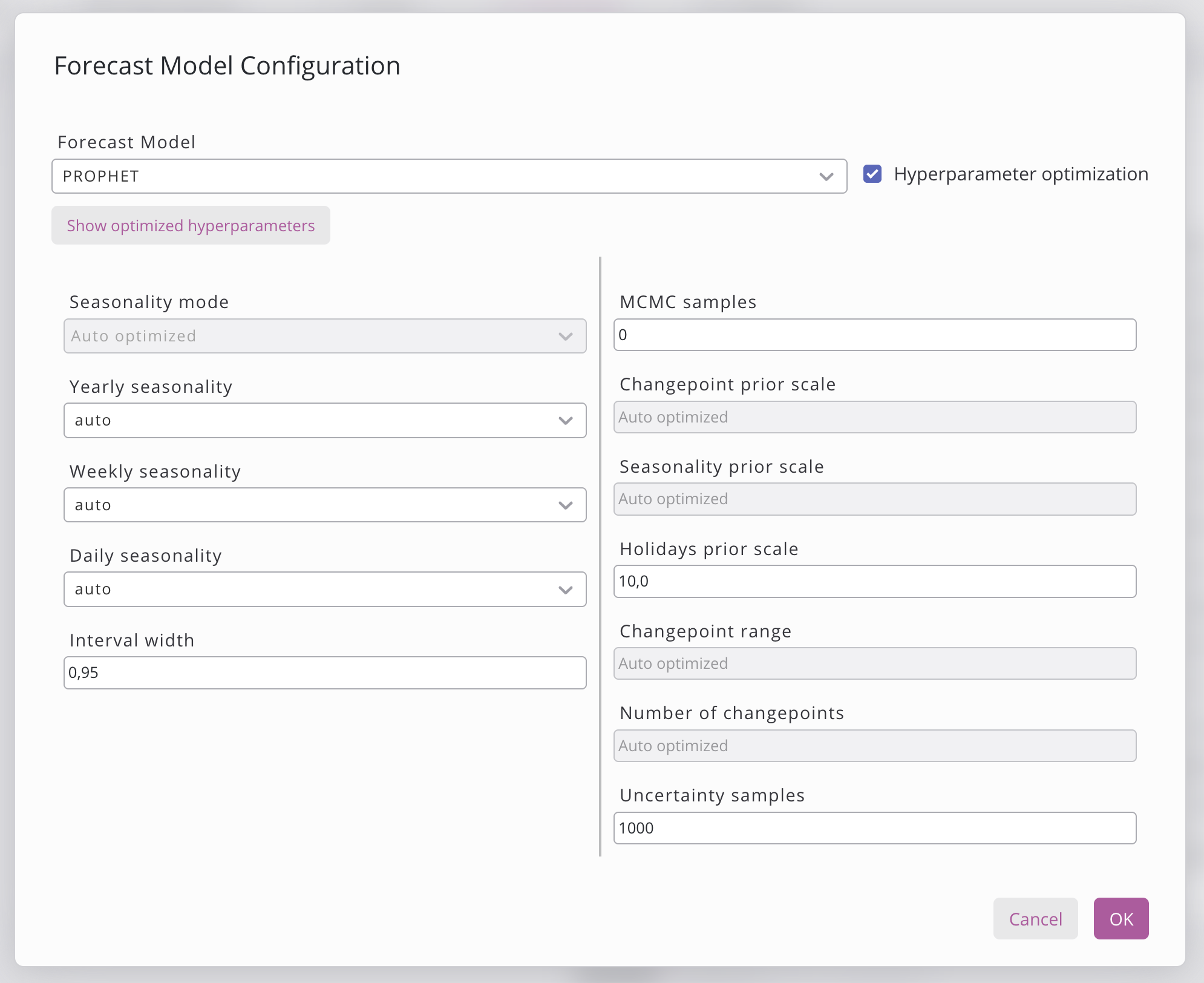
Following models are available to choose from:
Prophet
Prophet is a Machine Learning based open-source tool developed by Meta (former Facebook) for forecasting time series data. It’s designed to be robust to missing data and shifts in the trend, and particularly excels at forecasting time series with strong seasonality. Prophet can automatically handle holiday effects and allows the user to set own hyperparameters to make it even more precise.
Prophet is the most widely used of the available options because it takes a moderate amount of time to train but it consistently delivers the best results, making it the most cost-effective choice in most scenarios. Prophet excels when given multiple seasons of data in which a recurrent seasonal effects, holiday effects or irregular trend shifts take place.
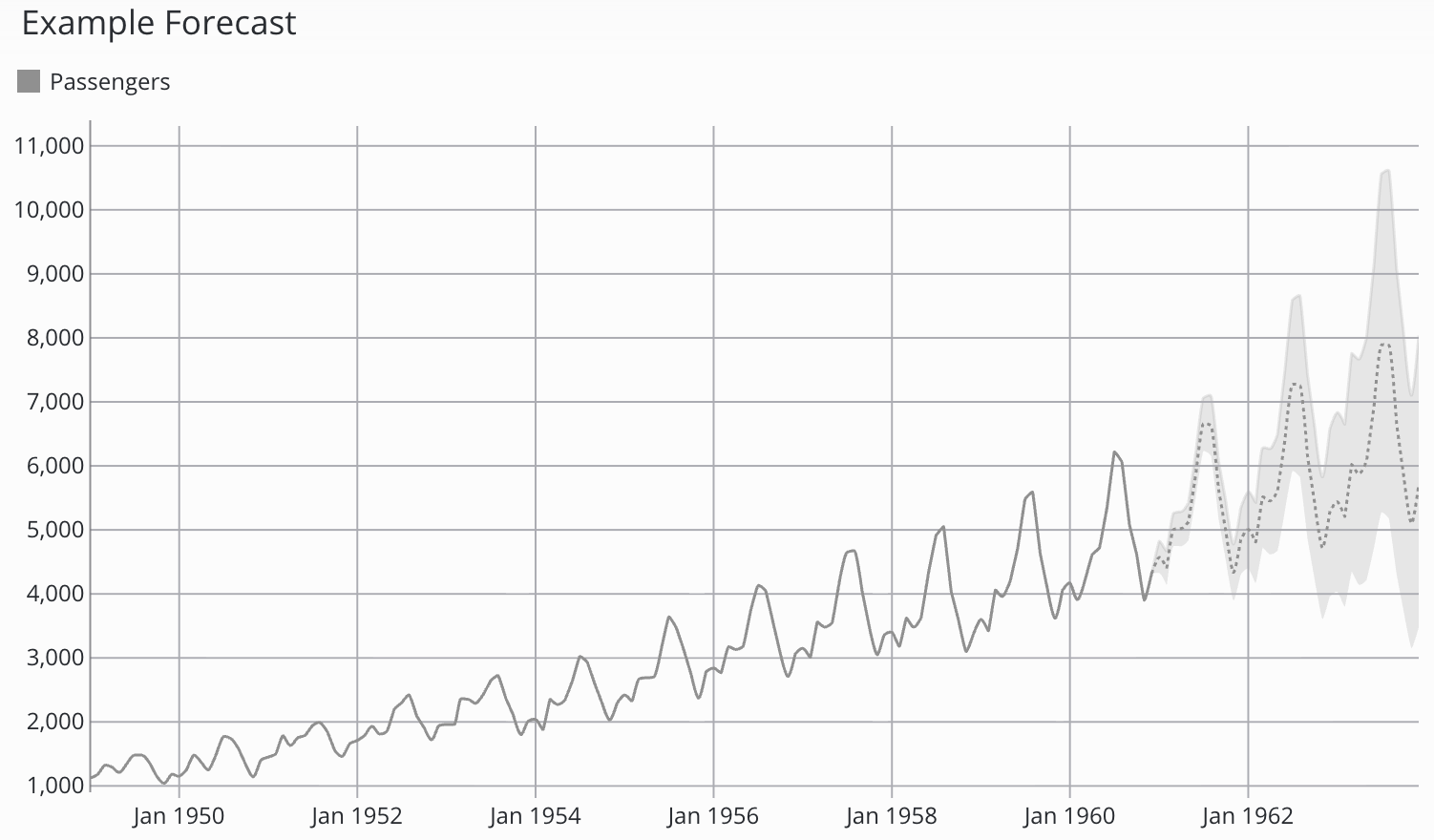
When chosen, the prophet model also shows confidence interval bands, which indicates the certainty of the model in its predictions. When visualised on the dashboard, the confidence interval band is shown in a lighter color around the forecast.
The following variables can be configured:
Setting | Description |
|---|---|
seasonality_mode | Determines whether seasonal effects are added to or multiplied with the trend. Default: |
yearly_seasonality | Enables, disables, or auto-detects fitting of a yearly seasonal pattern. Default: |
weekly_seasonality | Enables, disables, or auto-detects fitting of a weekly seasonal pattern. Default: |
daily_seasonality | Enables, disables, or auto-detects fitting of a daily seasonal pattern. Default: |
interval_width | Width of the uncertainty interval returned with each forecast. Default: |
mcmc_samples | Number of MCMC samples for full Bayesian inference; 0 uses MAP estimation instead. Default: |
changepoint_prior_scale | Controls trend flexibility at changepoints; higher values allow more aggressive trend shifts. Default: |
seasonality_prior_scale | Regularization strength for seasonality components; higher values allow larger seasonal swings. Default: |
holidays_prior_scale | Controls the magnitude of holiday effects on the forecast. Default: |
changepoint_range | Fraction of training history in which trend changepoints are permitted to occur. Default: |
n_changepoints | Number of potential trend changepoints automatically placed in the training period. Default: |
uncertainty_samples | Number of posterior draws used to estimate forecast uncertainty intervals. Default: |
SARIMAX
SARIMAX (Seasonal Autoregressive Integrated Moving Average with Exogenous Regressors) is a statistical model used to predict future points based on past data. It handles both trends and seasonal patterns. It’s the extension of the ARIMA model by adding seasonal components.
SARIMAX especially works when the data is generated stable and consistent and where a statistical model is preferred over a machine learning model.
There are no variables in the SARIMAX model that can be tuned by the User.
Linear Regression
Linear Regression is used to predict trends only by fitting a straight line onto the training data and expanding this line into the future. It is a powerful tool to predict future trends in any time series data.
Linear Regression is best used when the underlying data exhibits a clear, consistent linear trend with minimal seasonality or noise.
There are no variables in the Linear Regression model that can be tuned by the User.
XGBoost
The XGBoost model uses gradient-boosted decision trees for direct multi-step forecasting. Before training, it applies extensive feature engineering to the input time series, extracting lag features, rolling statistics and calendar-based features, and then predicts each future point independently.
XGBoost works best with complex, non-linear data. It can reach good accuracy but takes time to train and in some cases, the data has to be preprocessed separately beforehand.
The following variables can be configured:
Setting | Description |
|---|---|
objective | Loss function used during training; determines what error metric the model optimizes. Default: |
quantile_alpha | Target quantile level when using quantile regression as the objective. Default: |
n_estimators | Number of boosting trees to build; more trees increase capacity but risk overfitting. Default: |
learning_rate | Step size shrinkage applied after each tree to prevent overfitting. Default: |
max_depth | Maximum depth of each tree; controls model complexity and interaction order. Default: |
min_child_weight | Minimum sum of instance weights required to create a leaf node. Default: |
gamma | Minimum loss reduction required to split a node; higher values make the model more conservative. Default: |
subsample | Fraction of training rows sampled per tree, used to reduce overfitting. Default: |
colsample_bytree | Fraction of features randomly selected when constructing each tree. Default: |
reg_alpha | L1 regularization term on leaf weights; promotes sparse solutions. Default: |
reg_lambda | L2 regularization term on leaf weights; penalizes large weight values. Default: |
Data Source
The configure data source window allows you to specify the data used to train the model.
The data source can be chosen on the left. There are two types of data source: a data source from your SKOOR database or a data query from the Data Query tab. Additional choices are required when selecting the data source and can be set in the window, such as the data source, table and columns. When selecting the data query option, the data query needs to be set, as well as the columns from that data query.
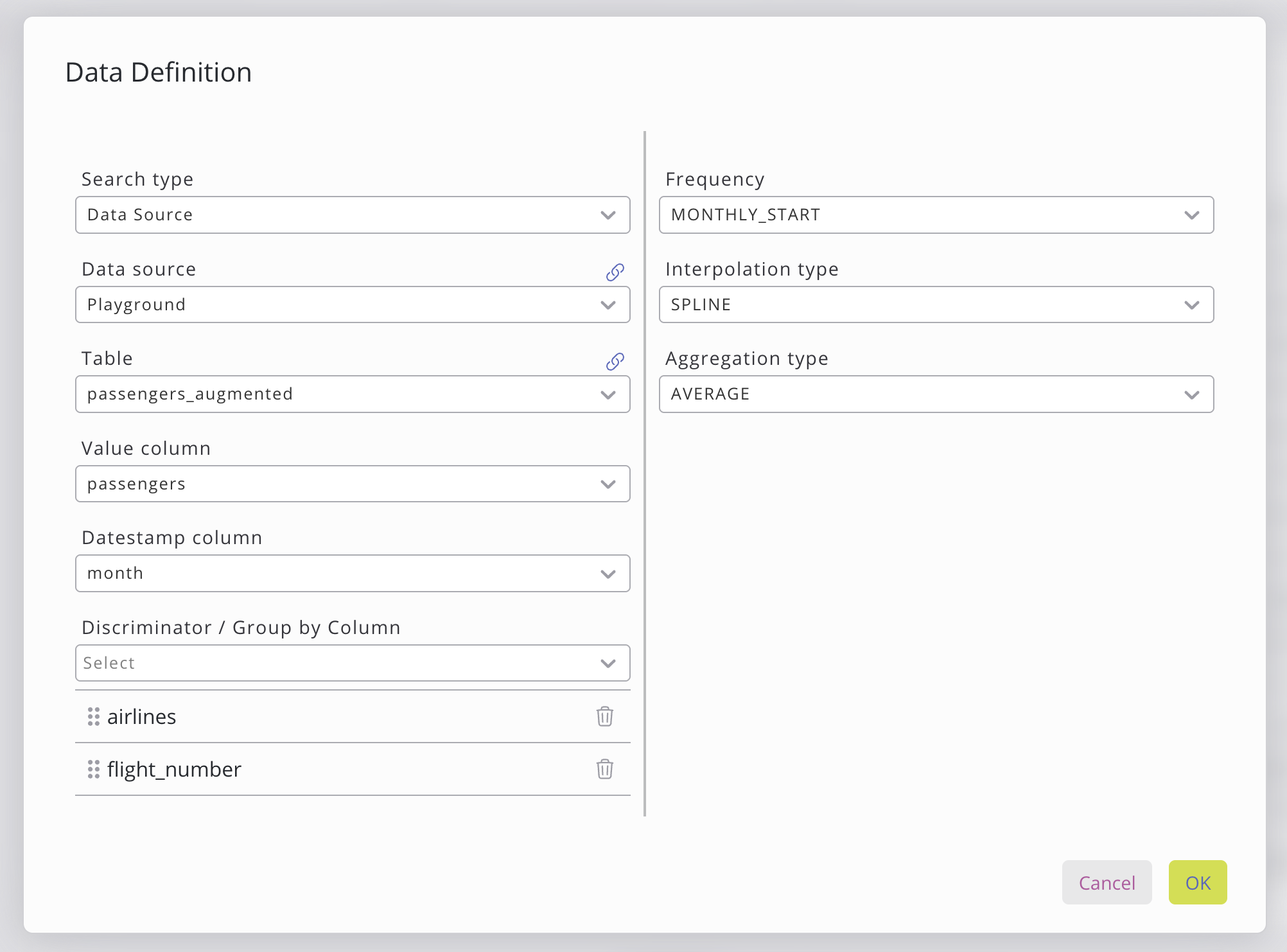
Value, date stamp and discriminator columns can be selected by clicking on the dropdown. The dropdown will automatically show columns that meet the requirements. Following columns needs to be chosen:
Setting | Description |
|---|---|
Value Column | Must contain numeric values associated with each timestamp. |
Date Stamp Column | The data must use a datestamp format YYYY-MM-DD HH:mm, and each data group must have unique timestamps per group (groups defined by discriminator columns or inherent data structure). |
Discriminator Columns | Optional columns used to define grouping and hierarchy (e.g. country → state → city). No strict data requirements, but the order of columns matters, as each level further refines the grouping. |
On the right side of the data window, further data preprocessing can be chosen.
Setting | Description |
|---|---|
Frequency | Sets the output resolution of the forecast. More info. |
Interpolation type | Defines how missing timestamps are filled. More info. |
Aggregation type | Controls how multiple values within a period are combined. More info. |
Time Zone | Resets the timestamp in the designated timezone. |
Frequency
The frequency will set the output of the forecast. The following frequencies can be chosen:
Setting | Description |
|---|---|
SECONDLY | Forecast output at a per-second resolution. |
MINUTELY | Forecast output at a per-minute resolution. |
HOURLY | Forecast output at an hourly resolution. |
DAILY | Forecast output at a daily resolution. |
WEEKLY_SUN | Forecast output at a weekly resolution, week starts on Sunday. |
WEEKLY_MON | Forecast output at a weekly resolution, week starts on Monday. |
WEEKLY_TUE | Forecast output at a weekly resolution, week starts on Tuesday. |
WEEKLY_WED | Forecast output at a weekly resolution, week starts on Wednesday. |
WEEKLY_THU | Forecast output at a weekly resolution, week starts on Thursday. |
WEEKLY_FRI | Forecast output at a weekly resolution, week starts on Friday. |
WEEKLY_SAT | Forecast output at a weekly resolution, week starts on Saturday. |
MONTHLY_END | Forecast output at a monthly resolution, anchored to the last day of the month. |
MONTHLY_START | Forecast output at a monthly resolution, anchored to the first day of the month. |
QUARTERLY_END | Forecast output at a quarterly resolution, anchored to the last day of the quarter. |
QUARTERLY_START | Forecast output at a quarterly resolution, anchored to the first day of the quarter. |
YEARLY_END | Forecast output at a yearly resolution, anchored to the last day of the year. |
YEARLY_START | Forecast output at a yearly resolution, anchored to the first day of the year. |
Internally, the dataseries that is provided is being interpolated or aggregated to the set frequency using the interpolation type and/or aggregation type. Note that if your data has any missing date stamp in between or has too many for the frequency, the selected interpolation and/or aggregation is applied automatically to ensure a smooth forecasting.
Interpolation types:
Setting | Description |
|---|---|
None | No interpolation applied, data is processed as-is. |
Linear | Fills gaps by drawing a straight line between known values. |
First | Fills gaps forward using the last known value (forward fill). |
Last | Fills gaps backwards using the next known value (backward fill). |
Spline | Fills gaps using a smooth cubic curve fitted through known values. |
Aggregation types:
Setting | Description |
|---|---|
None | No aggregation applied, data is processed as-is. |
Sum | Sums all values within each period. |
Average | Calculates the mean of all values within each period. |
Median | Returns the middle value of all values within each period. |
Count | Counts the number of non-null values within each period. |
Min | Returns the smallest value within each period. |
Max | Returns the largest value within each period. |
First | Returns the first value within each period. |
Last | Returns the last value within each period. |
STD | Calculates the standard deviation of all values within each period. |
Time Zone
Internally all the timestamps are getting reset in the timezone that has been set by the User.
Permissions
Readonly
Read forecast results
Search forecast configs by value definition
Editor
Everything Readonly can do
List all forecast configs (simple view only)
Dataeditor
Everything Editor can do
Full rights (create, read, update, delete) on forecast configs and groups
Start, view, and cancel forecast jobs
Export / import configs
Admin
Everything Dataeditor can do
Delete job history
Showing the Forecast on a Dashboard
Using the default forecast widget
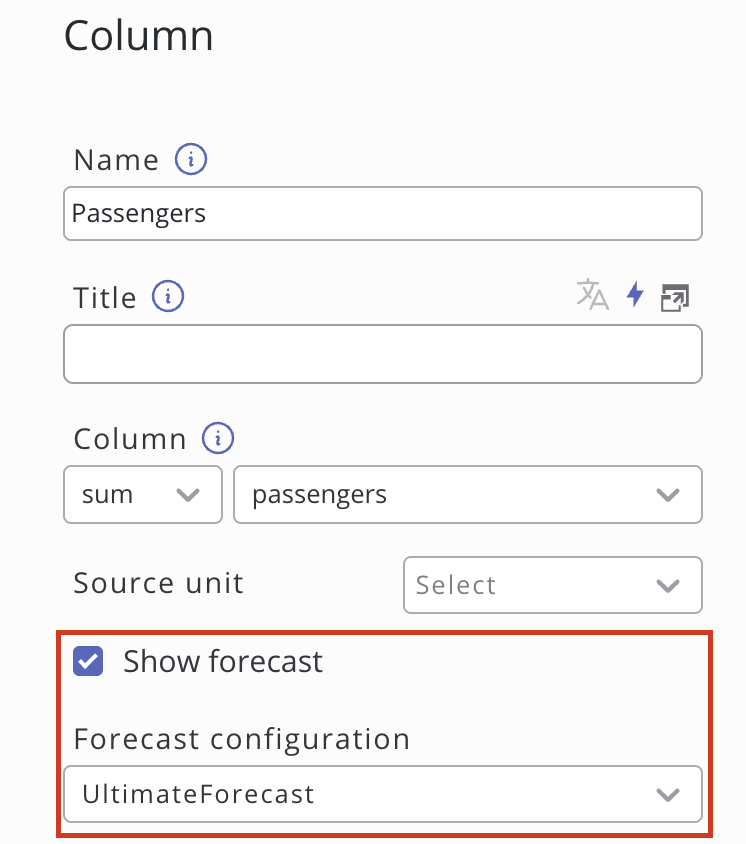
SKOOR implements an easy access to the forecast by introducing a button in the charts widget. Simply create a chart widget on the dashboard, set the chart type to Mixed and configure the same data definitions as in the forecast configuration. After setting up the datasource, either click on sync columns at the Columns sections on the bottom right in the widget edit dialogue or add the column that has been forecasted manually. Then click on that column and tick the show forecast box. Select the matching forecast configuration from the drop-down then apply. Now, the preview should already show the historical data with the matching forecast.
Using a custom Data Query
The table that contain the forecasting results can be copied to the clipboard by simply clicking on the copy table selector on the forecast configuration general page. Using this table, you can access the forecasting data and write your own data query e.g. in the SKOOR Studio. Note, that there are differences in the table columns as described:
Prophet
value column (Named the same as the input value column.)
date stamp column (Named the same as the input datestamp column.)
lower confidence value (Named the same as the input value column but with “_lower” in the end.)
upper confidence value (Named the same as the input value column but with “_upper” in the end.)
accuracy
discriminator columns (Same number of columns as the number of discriminator columns given. Named the same as the input discriminator columns.)
Linear Regression
value column (Named the same as the input value column.)
date stamp column (Named the same as the input datestamp column.)
accuracy
discriminator columns (Same number of columns as the number of discriminator columns given. Named the same as the input discriminator columns.)
SARIMAX
value column (Named the same as the input value column.)
date stamp column (Named the same as the input datestamp column.)
accuracy
discriminator columns (Same number of columns as the number of discriminator columns given. Named the same as the input discriminator columns.)
XGBoost
value column (Named the same as the input value column.)
date stamp column (Named the same as the input datestamp column.)
accuracy
discriminator columns (Same number of columns as the number of discriminator columns given. Named the same as the input discriminator columns.)